

I used to save every useful page thinking I would come back to it later. A few months later, my browser looked like a messy storage room full of old links, random articles, shopping pages, work tools, and folders I could barely understand. That is when I realized how to organize browser bookmarks is not just a tech trick.
It is a simple digital habit that can save time every single day. Whether you use Chrome, Safari, Firefox, or Microsoft Edge, your bookmarks should help you move faster, not slow you down.
A good bookmark system gives your daily websites quick access, stores long-term links neatly, and keeps temporary pages from turning into clutter. The key is to combine a clean bookmarks bar with a folder structure that matches how you actually browse.
Why Browser Bookmarks Become Messy So Fast
Browser bookmarks get out of control because most people save links without making a decision. We bookmark a recipe, a work dashboard, a bill payment page, a travel idea, a product review, a school resource, and a finance portal, but we rarely choose where each link belongs.
The real issue is not saving links. The issue is saving everything in one place with long page titles and no cleanup routine. Over time, your bookmark manager becomes harder to use than a regular Google search. A clean system fixes that by separating daily links, long-term references, active projects, and temporary saves.
Start With a Digital Bookmark Cleanup

Before you create new folders, open your browser’s Bookmark Manager and remove the dead weight. On Windows, the shortcut is Ctrl + Shift + O. On Mac, use Cmd + Option + B in supported browsers. You can also reach it through your browser menu under bookmarks or favorites.
Delete expired sale pages, old job listings, duplicate links, outdated travel searches, broken pages, and articles you saved years ago but never opened. If you feel nervous about deleting links, export your bookmarks first and save a backup file. This gives you a clean starting point without worrying about losing something important.
Use the Bookmarks Bar for Daily Access Only
Your bookmarks bar is premium digital real estate. It sits directly under the address bar, so it should only hold the websites you open multiple times a day. Think email, work calendar, banking, project dashboard, school portal, writing tools, or business software.
Do not fill this space with every useful link. Keep it focused on five to seven daily-use sites or folders. If you want more room, right-click each bookmark, choose edit, and remove the text from the name field. Most website logos are easy to recognize, so the favicon alone is enough. This one change can turn a crowded bookmarks bar into a clean row of compact shortcuts.
You can also create quick folders on the bookmarks bar. For example, use folders like Work, Travel, Finance, Shopping, or Learning. Emojis make folders easier to scan at a glance, especially when you move quickly between personal and professional tasks.
Create a Folder System That Matches Your Life
A good browser bookmark folder system should feel simple. If your folders are too detailed, you will stop using them. I prefer broad folders that match real browsing behavior, such as Daily, Work, Personal, Money, Shopping, Travel, Learning, Health, Projects, Read Later, and Archive.
The Daily folder should hold websites you use often but do not need on the main bar. Work can include client portals, admin tools, training materials, company resources, and dashboards. Personal can include entertainment, hobbies, family accounts, subscriptions, and useful services. Money can hold banking, taxes, insurance, budgeting tools, and bill payment pages.
Try not to create folders more than three levels deep. If you have to click through folder after folder to find a link, the system is too complicated. Simple folders make bookmarks faster to store and easier to find.
Choose Between Topic Folders and the PARA Method

If you want a standard system, organize bookmarks by topic. This works well for everyday users because it feels familiar. You can create main folders like Work, Personal, Research, Shopping, Finance, Travel, and Learning. Inside those, keep subfolders short and practical.
If topic folders feel too static, use the PARA method. PARA stands for Projects, Areas, Resources, and Archives. Projects are active tasks with clear outcomes, such as “Q2 Budget Planning,” “Kitchen Remodel,” or “Chicago Trip.”
Areas are ongoing responsibilities like Health, Car Maintenance, Career, or Rentals. Resources are general reference topics like design ideas, writing tools, recipes, or coding tutorials. Archives hold completed or outdated items you may still want for records.
This method works well because it organizes bookmarks by action, not just category. If a link belongs to something you are actively doing, it goes into Projects. If it supports an ongoing part of your life, it goes into Areas. If it is useful background material, it goes into Resources. When it is no longer active, move it to Archives.
Use an _Inbox Folder for Quick Saving
One of the easiest ways to keep bookmarks clean is to create a folder called _Inbox or Unsorted. When you are browsing quickly and do not want to stop, save new links there instead of dumping them into random folders.
The underscore keeps the folder near the top alphabetically. Once a month, open the _Inbox folder and decide what to keep, move, or delete. This gives you speed when you are busy and structure when you are ready to clean up. It also prevents your main folders from becoming messy again.
How to Organize Bookmarks in Chrome, Edge, Firefox, and Safari
The exact buttons differ by browser, but the process is similar. In Chrome, open Bookmark Manager, create folders, drag bookmarks into place, rename long titles, sort by name, and turn on sync if you want access across devices.
Microsoft Edge uses Favorites instead of bookmarks, but the same idea applies. You can create folders, manage the favorites bar, import bookmarks, and sync them with your Microsoft account.
In Firefox, use the Library section to manage bookmarks, create folders, add tags, move saved links, and export backups. In Safari, use the sidebar or bookmarks menu to organize links, and turn on iCloud sync if you want bookmarks to appear across your Mac, iPhone, and iPad.
This is where how to organize browser bookmarks becomes easier than it sounds. You do not need a complicated tool. You need a clear rule for what belongs on the bar, what belongs in folders, and what should be deleted.
Sort, Sync, and Remove Dead Links
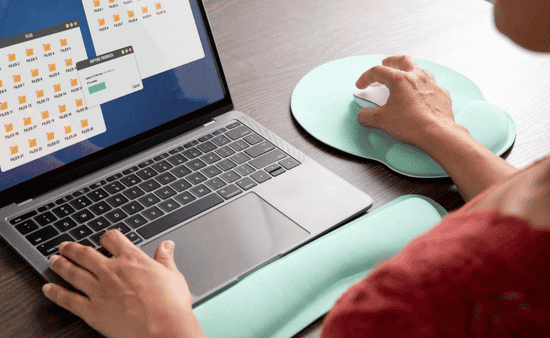
Once your folders are built, alphabetize long folders to make them easier to scan. Most bookmark managers let you right-click a folder and choose sort by name. This is especially useful for folders like Tools, Clients, Shopping, or Research.
You should also remove duplicate bookmarks and broken links. Over time, websites change URLs, pages disappear, and saved links stop working. Browser extensions such as Bookmarks Organizer can help scan for duplicates and dead 404 pages, but you can also do a manual cleanup if your collection is small.
Finally, turn on browser sync. If you use Chrome, Edge, Firefox, or Safari on multiple devices, sync keeps your bookmarks available across your laptop, desktop, and phone. This is especially useful for people who switch between work and personal devices during the day.
Common Bookmark Organization Mistakes to Avoid
The biggest mistake is treating the bookmarks bar like a storage shelf. It should only hold daily shortcuts, not every page you like. Another mistake is keeping long website titles. Rename links with short labels so they are easier to scan.
Avoid creating too many folders. A system with 40 categories may look organized, but it usually becomes difficult to maintain. Also, do not keep every saved article forever. If you never read something after a month or two, delete it or move it to Archive. This same simple approach can also help when you clean up your gmail inbox and remove messages you no longer need.
Frequently Asked Questions (FAQs)
1. What is the easiest way to organize browser bookmarks?
The easiest way is to delete old links, keep only daily sites on the bookmarks bar, create broad folders, and use an _Inbox folder for quick saves.
2. How do I clean up too many browser bookmarks?
Open your bookmark manager, delete duplicates and outdated links, sort folders by name, and move unfinished items into Read Later, Projects, or Archive.
3. Should I organize bookmarks by topic or project?
Use topic folders for general links and project folders for active tasks like travel planning, client work, home repairs, or school research.
4. How often should I review my bookmarks?
A monthly review works best because it keeps your _Inbox, Read Later folder, duplicates, and dead links from becoming clutter again.
Final Thoughts
Learning how to organize browser bookmarks is one of the simplest ways to reduce digital clutter. I like this system because it does not require a new app, a complicated workflow, or hours of setup. Start with cleanup, protect your bookmarks bar, create broad folders, use PARA for active projects, and review your Inbox once a month.
When your bookmarks have a clear home, your browser feels faster, cleaner, and easier to use. Instead of wasting time searching for links you already saved, you can open the right page in seconds and get back to what matters.