

I noticed how frustrating home internet feels when a video buffers or a work call freezes. I used to blame the internet plan, but weak Wi-Fi, a crowded channel, or an aging router can cause similar symptoms. Before paying for faster service, find out where the slowdown begins.
I also learned that random setting changes make troubleshooting harder. Compare a speed test where the connection struggles with one near the router. Those results can reveal whether the issue is coverage, device activity, equipment, or the internet provider.
Start by Finding Out What’s Slowing Your Internet Down
Run a speed test near the router, then repeat it where the connection struggles. Pause large downloads and test at different times if possible. Record download speed, upload speed, and latency. Downloads affect streaming, uploads matter for calls and file sharing, and latency measures response delay. Keep a simple note of each result so you can identify which change actually helped.
For comparison, connect a computer to the router with Ethernet. If wired speed matches your plan but Wi-Fi is slow, focus on coverage or wireless settings. If both tests are poor, check for outages and cables, then contact your provider before buying equipment.
Router Settings Worth Checking First

Choose the Right Wi-Fi Band
Most routers offer 2.4 GHz and 5 GHz; newer models may add 6 GHz. The 2.4 GHz band usually reaches farther but is often crowded. Five gigahertz can be faster nearby, while 6 GHz adds capacity for compatible devices but struggles more with distance and walls.
Use 5 GHz or 6 GHz for nearby laptops, TVs, or consoles when the signal is strong. Keep 2.4 GHz for smart devices or distant rooms. Automatic band selection often works well; split network names only when troubleshooting a particular device.
Check Channels and Channel Width
Nearby networks compete for airtime, especially in apartments. Start with automatic channel selection and try manual selection only if performance remains poor. On 2.4 GHz, channels 1, 6, and 11 commonly avoid overlap where supported. Five-gigahertz channels vary by router and region, so follow the manufacturer’s guidance.
Wider channels can increase throughput but may also collect more interference. Change one setting at a time, save the original configuration, and compare results before keeping a change.
Update Firmware and Keep Security On
Check the router app for firmware updates, which can improve stability and fix security weaknesses. Enable automatic updates if available. Use WPA3 Personal when supported, or a compatible WPA2/WPA3 mode, and set a strong Wi-Fi password.
Consider AI privacy and data protection when reviewing connected devices and smart-home services. Remove unused devices, change default administrator credentials, and never disable encryption to chase speed. Security helps protect personal information and keeps unknown users off your network.
Improve Wi-Fi Coverage Around Your Home
Place the router in an open, central spot, ideally on a shelf. Avoid cabinets, televisions, large metal objects, and microwaves. Thick walls and floors can weaken signals. For adjustable antennas, follow the manufacturer’s placement advice.
For an upstairs bedroom or office with poor reception, test on the stairs and nearby rooms before buying anything. To learn how to improve wifi signal upstairs, consider a wired access point or mesh system for multiple floors. Place mesh points where the signal is still strong, not inside the dead zone. An extender may help, though its design and placement affect usable speed.
Reduce Congestion From Connected Devices
Household devices share bandwidth. Streaming, video calls, game downloads, and photo backups can compete at once. Pause large transfers during important calls and check the router’s device list for unfamiliar connections. If heavy use is routine, a higher-capacity plan may help.
Some routers offer Quality of Service (QoS), which prioritizes a work computer, console, or call. Try it if delays happen during busy periods, but remember it does not increase total bandwidth; it decides which traffic gets priority.
Know When Ethernet or Better Hardware Makes Sense
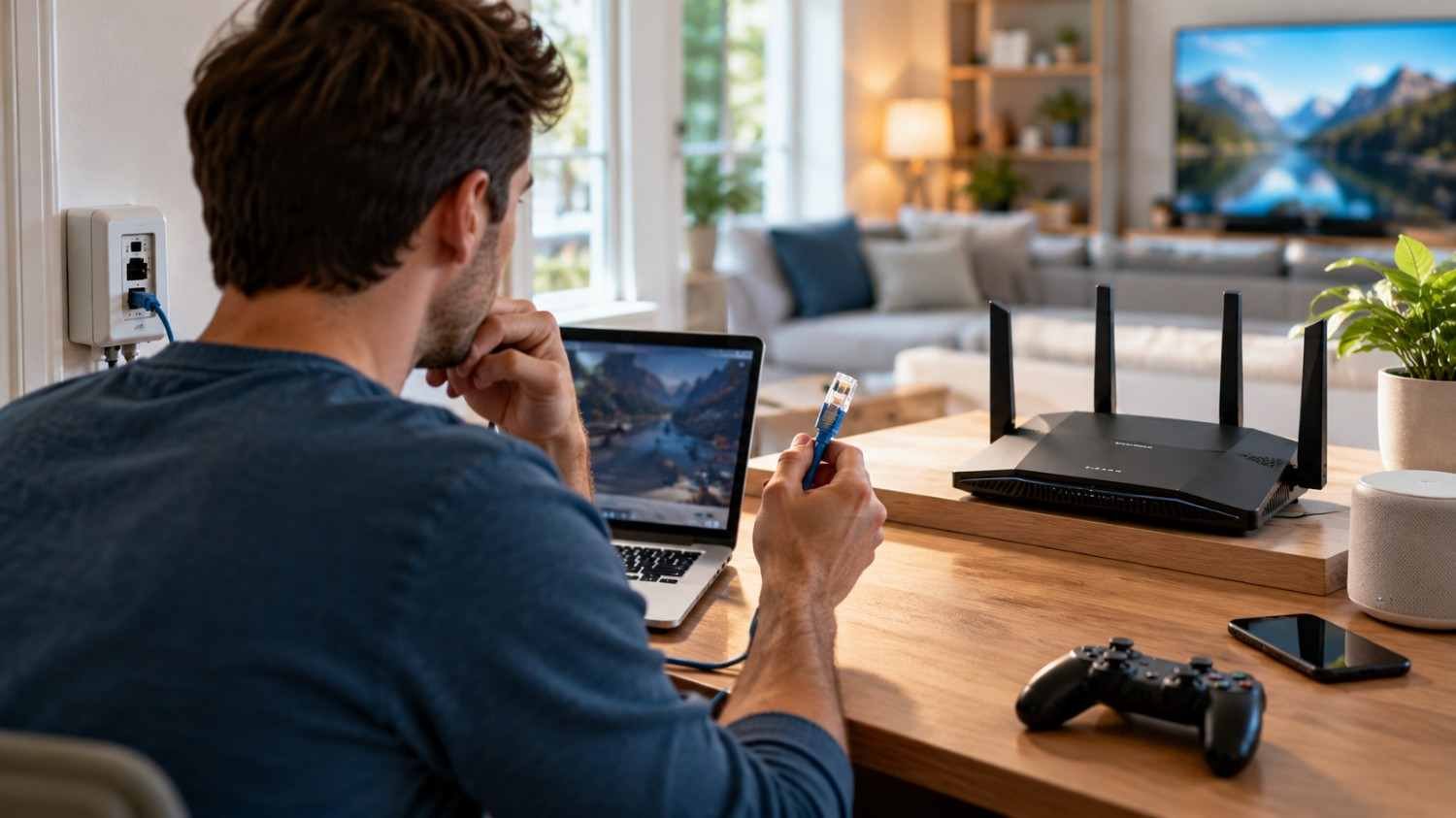
Ethernet often improves consistency for a nearby desktop, streaming device, or console. Check cables for damage and confirm the ports support your plan’s speed. Cat 5e or Cat 6 usually handles gigabit home connections; expensive cables will not make a slow plan faster.
Replace a router if it drops connections, cannot support your plan, lacks security updates, or leaves persistent dead zones. Check its specifications first. Wi-Fi 6, 6E, or 7 can help compatible devices, but newer hardware will not fix a weak broadband line. For large homes, compare mesh with a wired access point.
When the Problem Is Your Internet Provider
If wired tests are far below your plan’s expected speed, check for outages and ask your provider to test the line. Record test times and affected devices. Peak-hour slowdowns happen, but persistent problems deserve investigation. Ask about modem compatibility, line errors, and plan changes.
Changing DNS may help a website begin loading faster if the current service responds slowly, but it rarely increases download bandwidth. Treat it as a secondary test. Rebooting may clear a temporary fault, not solve a persistent one.
FAQs: Home Internet Speed Optimization: Router Settings and Network Fixes to Try
1. Does restarting a router improve internet speed?
Yes, sometimes. Restarting can clear temporary glitches, but recurring slowdowns need proper testing rather than repeated reboots.
2. Is 5 GHz always better than 2.4 GHz?
No. Five gigahertz is often faster nearby, while 2.4 GHz usually reaches farther. Walls, interference, and device support affect performance.
3. Will changing DNS make downloads faster?
Usually not. DNS translates website names into network addresses and may speed up initial lookup, but it does not increase your ISP’s bandwidth.
4. When should I upgrade my router?
Upgrade when a router cannot support your plan, disconnects often, lacks security updates, or leaves dead zones. Test wired speed and coverage first.
Make Your Connection Work Better Before Spending More
Home internet speed optimization works best as a process, not a magic setting. Measure performance, compare wired and wireless results, and adjust one router setting at a time. These checks help separate weak coverage from congestion, aging equipment, or an ISP problem, and can prevent spending on upgrades that will not fix the cause.
A reliable connection fits your home and daily needs. Measure first, keep security intact, and upgrade only when the evidence points that way.