
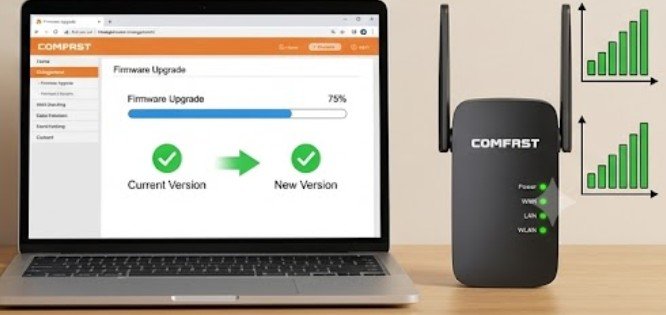
A Wi-Fi extender that restarts every few minutes is not necessarily suffering from a Wi-Fi problem. Repeated rebooting often starts deeper in the device, with unstable power, excess heat, damaged settings, or firmware that cannot complete its startup sequence.
If you are trying to understand how to fix comfast extender that keeps rebooting itself, start by watching exactly what the LEDs do during the failure. A genuine reboot normally causes the power light and Wi-Fi indicators to cycle through their normal startup sequence. A simple wireless disconnect may leave the power light on continuously.
That distinction can save a surprising amount of troubleshooting.
First, Confirm That the Extender Is Actually Rebooting
Before resetting anything, watch the extender for five to ten minutes. If all LEDs go dark and then return in their normal startup pattern, the device is probably restarting. If only the Wi-Fi or signal indicator changes, the extender may instead be losing its connection to the primary router.
COMFAST manuals indicate that some models use different LED colors to represent weak, strong, or established upstream connections. Because indicators vary by model, check the manual for your exact CF model before interpreting a red or blinking light as a hardware failure.
The FCC notes that Wi-Fi performance can also vary by frequency. The 5 GHz band generally provides higher speeds but shorter range than 2.4 GHz, making placement particularly important for extenders.
Use This Reboot-Loop Diagnosis Order
Instead of changing several settings at once, isolate one possible cause at a time.
| What you observe | Likely cause | First test |
| All lights repeatedly turn off | Power or hardware problem | Try another wall outlet |
| Reboots after running for a while | Heat problem | Cool and relocate the extender |
| Loop started after settings changed | Configuration corruption | Factory reset |
| Loop began after firmware work | Firmware problem | Verify exact model and firmware |
| Power stays on but Wi-Fi disappears | Signal or interference issue | Move closer to the router |
This order matters because factory resetting an extender will not repair an unstable electrical connection, while moving the extender will not fix corrupted firmware.
1. Eliminate Power Problems Before Changing Settings
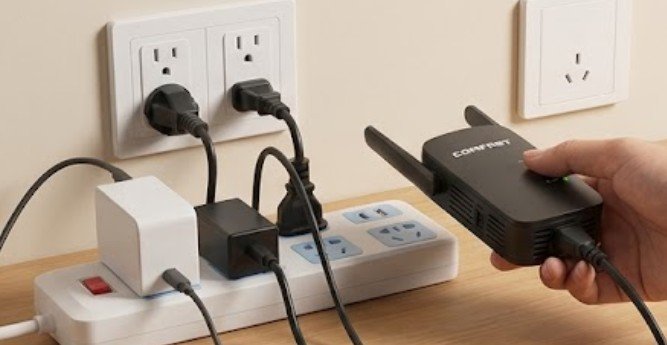
A brief voltage drop may be enough to restart networking equipment even when other appliances on the circuit appear normal.
Unplug the COMFAST extender and place it directly into a different wall outlet. During testing, avoid extension cords, questionable adapters, overloaded power strips, and loose outlets.
Leave it running there for at least 15 minutes.
If the rebooting stops, reconnecting it to its original location may reproduce the failure and confirm that the power source is involved.
For models that use an external power adapter, verify that you are using the correct adapter with the voltage and current specifications required by the device. Do not substitute an adapter simply because its plug fits.
Outdoor COMFAST access points and bridges may use Power over Ethernet rather than a wall-plug design. In that situation, inspect the PoE injector and Ethernet cables. Testing with a known-good cable can help rule out intermittent power delivery.
2. Check Whether Heat Is Triggering the Restart
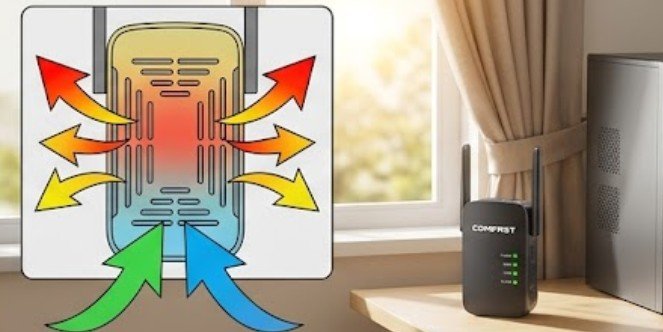
Networking hardware runs continuously and produces heat. Poor ventilation can increase internal component temperatures enough to affect stability.
Unplug the extender and allow it to cool for about 10 to 15 minutes. Then reconnect it somewhere open and shaded rather than behind furniture, inside a cabinet, beside a heater, or against another warm electronic device.
San Francisco State University’s networking guidance specifically warns that prolonged heat and direct sunlight can affect router stability and recommends keeping networking hardware cool.
Do not cover ventilation openings. Dust around vents can also restrict airflow, so gently clean the exterior with the device disconnected.
If the extender works normally while cool but begins rebooting after becoming noticeably hot, temperature or failing internal hardware becomes more likely.
3. Test the Extender Near the Main Router
A weak upstream connection does not normally make a healthy extender lose electrical power, but it can produce repeated disconnects that users mistake for reboots. Temporarily plug the COMFAST unit into an outlet in the same room as the primary router.
Caltech’s home-network guidance recommends testing wireless equipment close to the router before testing farther away because distance and interference can dramatically change results. Microwaves, cordless phones, cameras, and neighboring networks are among the potential interference sources.
If the extender becomes stable near the router, move it outward gradually. The ideal position is generally somewhere between the router and the coverage problem, but still inside a reliably strong Wi-Fi area. An extender placed directly inside a dead zone has little usable signal to repeat.
4. Factory Reset the COMFAST Extender
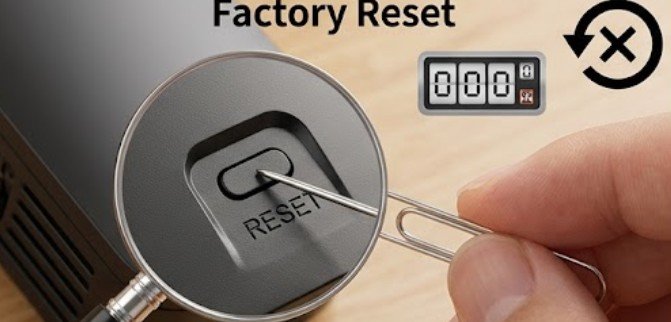
If power, heat, and placement tests do not solve the problem, corrupted configuration data becomes a reasonable next suspect.
On many COMFAST repeaters, a hardware reset is performed while the unit is powered by pressing and holding the Reset or WPS/Reset button for roughly 5 to 10 seconds. Some models require slightly different timing.
After resetting, allow the device to finish booting before trying to configure it again. Do not repeatedly press reset during startup.
You may then need to connect to the extender’s default wireless network and open its management address. Various COMFAST models use addresses such as 192.168.10.1, but you should follow the documentation supplied for your exact model rather than assuming one address applies to every device.
Configure only the essentials first: the upstream Wi-Fi network, password, and repeater mode. Leave advanced settings unchanged until stability is confirmed.
5. Treat Firmware Updates Carefully
Firmware can fix bugs, compatibility problems, and security weaknesses, but installing the wrong image can leave networking equipment unable to boot correctly. The FTC recommends keeping internet-connected devices updated and checking manufacturers for firmware releases.
Before flashing anything, identify the exact COMFAST model and hardware revision printed on the product label. A firmware package intended for a similar-looking model is not automatically compatible.
Do not interrupt power while firmware is being installed. OpenWrt documents recovery procedures for certain COMFAST devices, including model-specific recovery modes that can reload firmware after a failed installation. Those procedures are highly model dependent, so they should not be treated as universal instructions.
If your extender began rebooting immediately after a firmware update and factory resetting changes nothing, stop experimenting with unrelated firmware images and look for recovery instructions specifically matching the model and hardware revision.
6. Reconnect Devices Gradually
After resetting the extender, test it before reconnecting your entire household.
Connect one phone or laptop first. Leave the extender operating for several minutes, then add other devices one at a time.
This makes it easier to spot whether the restart coincides with a particular device, heavy traffic, or configuration change.
For laptop troubleshooting, keep unrelated hardware issues separate from the network diagnosis. For example, an external DVD drive for a laptop should be tested independently rather than assuming every peripheral problem comes from the Wi-Fi extender.
When a Replacement Makes More Sense
A factory reset should clear ordinary configuration errors. A different wall outlet should eliminate many local power problems. Better ventilation should reduce heat-related instability.
If the extender still performs a complete power-on reboot cycle with minimal configuration, in multiple outlets, while cool and positioned close to the router, hardware failure becomes much more plausible.
Signs worth taking seriously include a burning smell, unusual buzzing, a cracked or discolored enclosure, an excessively hot adapter, or an extender that powers off when lightly moved. Disconnect damaged equipment rather than continuing repeated tests.
Replacing an aging extender may also make more sense than repeatedly repairing it if firmware support has ended or the device no longer supports the security and wireless standards used by the rest of your network.
Frequently Asked Questions
1. Why does my COMFAST extender keep turning off and back on?
Common causes include unstable power, overheating, corrupted configuration data, firmware problems, or failing internal hardware. Test another wall outlet before changing software settings.
2. Will resetting a COMFAST extender stop the reboot loop?
It can help if corrupted settings are responsible. A reset will not fix damaged hardware, overheating, a failing power supply, or incompatible firmware.
3. How long should I hold the COMFAST reset button?
Many COMFAST models require approximately 5 to 10 seconds, but the exact procedure varies. Check the documentation for your model before performing a reset.
4. Can weak Wi-Fi cause a COMFAST extender to restart?
Weak Wi-Fi usually causes connection loss rather than a complete power reboot. Check whether the power LED actually cycles before assuming the extender is restarting.
The Most Useful Final Test
The fastest way to solve how to fix comfast extender that keeps rebooting itself is to remove variables rather than repeatedly restarting the unit. Test it in a different outlet, let it run cool, place it near the router, reset it once, and configure only the basics.
If it survives those tests, add devices and settings gradually until the problem returns. If it still reboots under clean conditions, repeated configuration changes are unlikely to help. At that point, verify model-specific firmware recovery options or replace the hardware. A reboot loop is frustrating, but its pattern usually tells you where the failure actually lives.