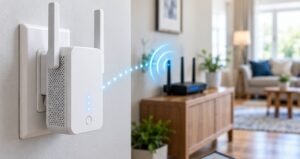
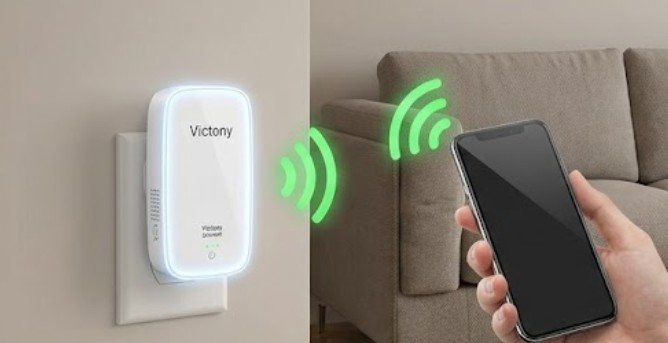
A WiFi extender can show a strong signal and still have no working internet. That sounds contradictory, but the bars on your phone mainly indicate the connection between your device and the extender. They do not prove that the extender has a healthy connection back to your router.
That distinction is the key to getting victony wifi extender internet connection issues resolved without repeatedly resetting equipment. Start by identifying where the connection fails: internet service, main router, extender-to-router link, or the device connected to the extender.
Why a Victony Extender Can Have WiFi but No Internet
A range extender acts as a middle point. Your phone or laptop communicates with the extender, and the extender must then communicate reliably with the main router.
If either half of that path breaks, you may see messages such as “Connected, no internet,” websites that refuse to load, frequent disconnects, or surprisingly slow speeds.
Common causes include an incorrect router password stored in the extender, poor placement, wireless interference, a router outage, stale network configuration, or an extender that was configured before the router’s SSID or password changed.
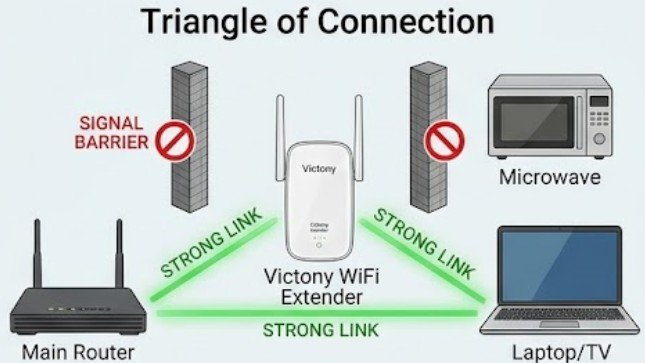
Caltech’s home-networking guidance notes that interference, distance, and physical placement can significantly affect wireless performance. It specifically identifies devices such as microwaves, cordless phones, cameras, and baby monitors as possible sources of interference.
Follow This Troubleshooting Order
For victony wifi extender internet connection issues resolved successfully, I would use the following sequence rather than jumping immediately to a factory reset.
- Disconnect from the Victony extended network and connect directly to your main router. Open several websites to confirm that the router itself has internet access.
- Unplug the extender and router. Wait about 30 seconds. Restart the router first and allow it to fully reconnect to your internet provider. Then power the extender back on.
- During testing, plug the extender into an outlet fairly close to the router. Do not troubleshoot it from the farthest room in the house.
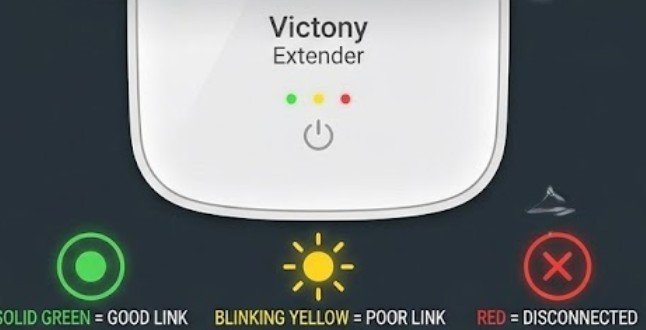
- Check the extender’s status indicators. Exact LED colors vary by model, so use the label or manual for your specific Victony unit rather than assuming every model behaves identically.
- Reconnect your phone or laptop to the extender network. If internet access returns near the router but disappears after relocating the extender, placement is probably the main issue.
- If the connection still fails, open the extender’s administration interface. Many Victony instructions use 192.168.10.1, but the correct address can vary, so confirm the address printed on your device or its documentation.
- Select your main router’s correct SSID and carefully enter the current WiFi password. Remember that wireless passwords are case-sensitive. Save the configuration, allow the extender to reboot, and reconnect your devices.
When 192.168.10.1 Does Not Open
The setup page is normally a local management interface, not a regular internet website. That means you generally need to be connected directly to the extender’s network before trying to open it.
If the page will not load, turn off mobile data temporarily on your phone, disconnect from other saved WiFi networks, and reconnect specifically to the Victony setup network. You can also try another browser or device.
Avoid assuming that every Victony-branded extender uses identical login credentials or addresses. Product revisions and models differ. The device label and original setup instructions should take priority over generic instructions found online.
Placement Can Matter More Than Signal Strength
Putting an extender in the room that already has almost no router signal is one of the most common mistakes.
An extender cannot rebroadcast a connection it cannot reliably receive. A better location is usually somewhere between the router and the dead zone, where the extender still receives a dependable router signal.
Caltech recommends testing wireless performance in multiple locations instead of trusting signal bars alone because bars do not reveal interference or actual throughput.
On dual-band networks, 2.4 GHz generally offers more practical range through a home, while 5 GHz can provide higher performance at shorter distances. Test both bands if your router and Victony model support them.
When a Factory Reset Makes Sense
Resetting should usually come after the basic tests, not before them. A factory reset is useful after changing routers, changing WiFi passwords, unsuccessful configuration attempts, or unexplained settings problems.
On many extenders, you press a recessed Reset button with a paperclip for several seconds until the indicator lights react. However, reset timing varies by model. Follow the instructions for your specific unit instead of relying on one universal number.
After the reset, configure the extender while it is near the router. Select the correct router network, enter its current password, let the extender restart, and test the connection before moving it.
WPS Can Help, but Manual Setup Gives You More Control
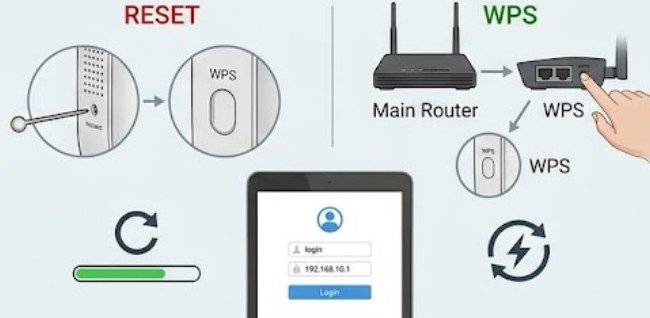
If both your router and extender support WiFi Protected Setup, WPS may establish the connection without entering the WiFi password manually.
Typically, you press WPS on the router and then activate WPS on the extender within the allowed pairing window.
Manual browser configuration is often more useful for troubleshooting because you can verify exactly which SSID and band the extender is trying to repeat.
For security, the FTC recommends using WPA2 or WPA3 encryption where supported and keeping router software updated.
NIST likewise emphasizes that consumer routers are central points in home networks and that their security affects the devices relying on them. CISA also recommends maintaining updated networking firmware and replacing weak default network configurations.
What If the Extender Still Keeps Dropping?
At this point, test the network without the extender. If direct router improve WiFi signals and remains stable for several hours while devices connected through the Victony repeatedly disconnect, the extender, its placement, or its compatibility with the router deserves closer attention.
Older extender hardware can also become less practical as routers adopt newer wireless standards and security options.
If the router is positioned poorly, moving it to a more central location may accomplish more than adding another repeater. In larger homes where stable performance matters across several rooms or floors, a wired access point or coordinated mesh system may provide a more reliable path than repeatedly extending an already weak signal.
Security Checks After the Connection Is Restored
Do not stop troubleshooting the moment websites start loading. Change default administrative credentials if your model permits it, use WPA2 or WPA3 security when supported, and avoid leaving an extender network open without a password.
The FTC recommends changing default router settings and checking devices for software or firmware updates. These steps matter because restoring connectivity should not require weakening the security of the network.
Frequently Asked Questions
1. Why does my Victony extender say connected but have no internet?
Your device may be connected successfully to the extender while the extender has lost its connection to the router. Check the router first, then verify the extender’s saved SSID and password.
2. How can I get victony wifi extender internet connection issues resolved after changing my router password?
Reconnect to the extender’s management interface and update the saved router password. If you cannot access the configuration, reset the extender and configure it again.
3. Should I place my WiFi extender beside the dead zone?
Not necessarily. Place it where it can still receive a dependable signal from the main router while being closer to the weak-coverage area.
4. Does resetting a Victony extender erase its settings?
A factory reset normally removes saved network configuration, meaning you will need to reconnect the extender to your router and configure the extended network again.
The Connection You Need to Test First
The most misleading extender problem is seeing full WiFi bars and assuming the internet connection must also be healthy. Those bars only tell part of the story.
Start with the main router, test the extender beside it, verify the correct SSID and password, then relocate the device gradually. Reset only when configuration problems remain. If the extender repeatedly fails while direct router connections remain stable, consider whether placement, interference, aging hardware, or a different network design is the real issue. Troubleshooting the connection in that order turns an apparently mysterious WiFi failure into a manageable series of tests.