
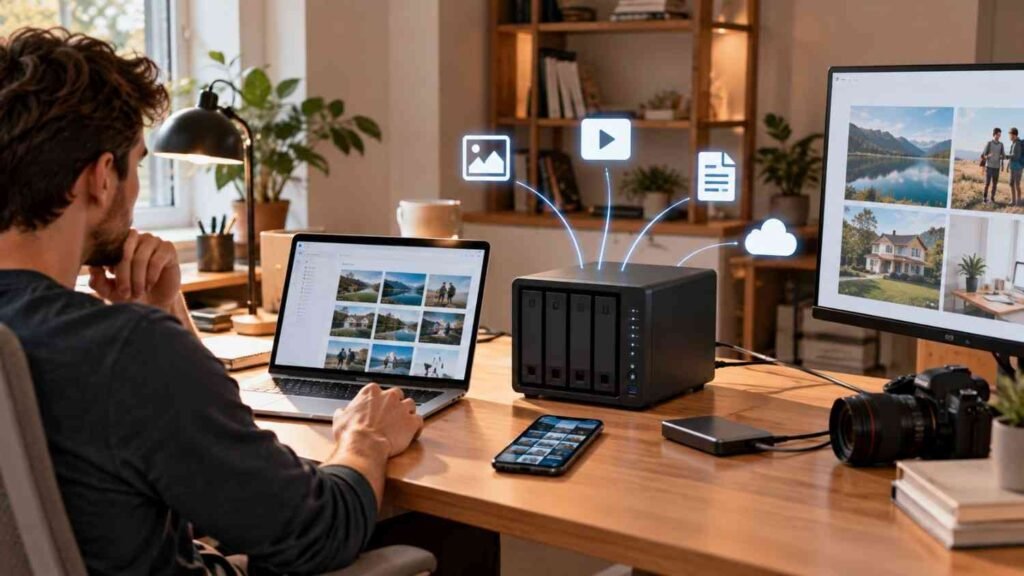
I used to think of storage as something I solved one device at a time. A laptop had its folders, my phone had its photos, and an external drive held whatever I remembered to copy. As those collections grew, I noticed how often I searched for the right file or wondered whether something important had actually been backed up.
I also realized that adding another drive did not solve the management problem. I wanted one place where files could live, devices could back up automatically, photos could stay organized, and important data could be recovered after an accident. That is where a Synology NAS made more sense than simply buying another hard drive or expanding a cloud subscription.
What Makes a Synology NAS Different?
A network-attached storage device connects to your home or office network and provides shared storage that multiple devices can reach. Synology adds a software layer through DiskStation Manager, or DSM, a browser-based interface for managing files, users, storage, applications, and security.
That makes a compatible NAS useful for more than storing folders. It can become a private cloud, backup destination, photo library, file-sharing platform, and, on suitable models, a broader home or small-business server. Capabilities vary by model and supported applications.
Keep Your Data in One Central Location
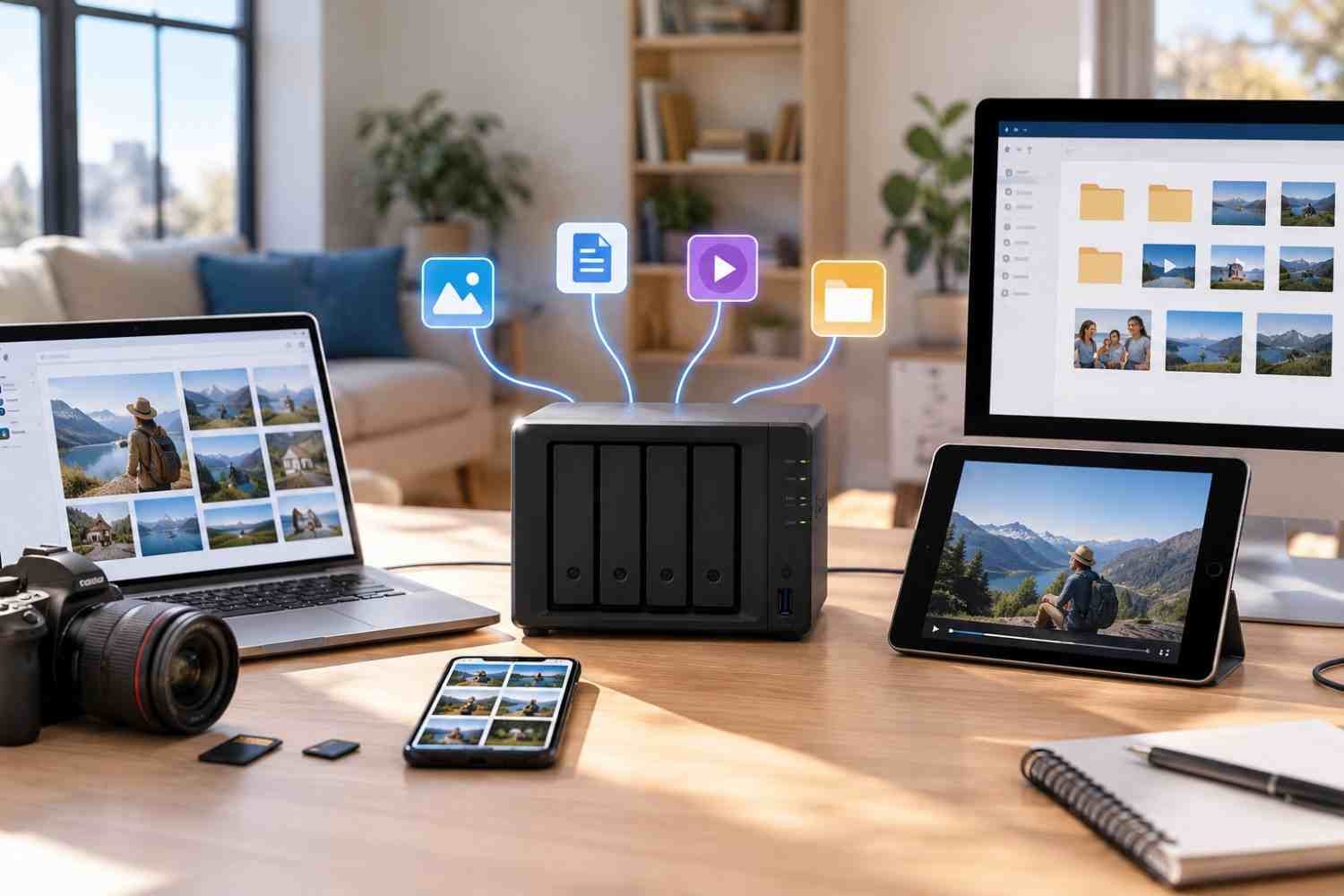
Centralized storage is one of the clearest reasons to consider a Synology NAS. Instead of spreading documents, photos, videos, and project files across computers and portable drives, a NAS gives them a common home.
Synology Drive extends that idea across Windows, macOS, mobile devices, and web browsers. Files can be synchronized, shared, and accessed remotely, while permissions help control who can view or edit folders. It can also work alongside Google Drive, Dropbox, or OneDrive, allowing users to keep local copies while still using cloud services.
Automate Backups Instead of Relying on Memory
The biggest weakness of manual backup is that it depends on remembering. Synology’s tools can schedule recurring protection for computers and other data, reducing the chance that newer files are left unprotected.
Hyper Backup can create versioned backups to external devices, another Synology NAS, or supported cloud destinations. Active Backup can protect supported computers and workloads, while Synology Drive can back up folders from connected computers.
Versioning matters after accidental changes. If a file is overwritten, deleted, or encrypted by malware, an earlier version can provide a route back to usable data instead of forcing you to recreate the work.
Build a Private Cloud for Everyday Files
A private cloud is useful when you want access from multiple places without making a third-party cloud service the only home for your data.
Synology Drive provides desktop and mobile access, synchronization, sharing links, and permission controls. Phones can also send photos and videos to the NAS automatically. The result feels less like a box beside a router and more like a personal storage service.
Remote access still requires sensible security. Strong passwords, appropriate permissions, software updates, and carefully configured external access matter.
Protect More Than the Files
A NAS can add several layers of resilience, but each layer has a different job. RAID can help maintain availability when a drive fails, but redundancy is not the same as backup.
Snapshots preserve point-in-time versions, helping with accidental deletion or certain ransomware scenarios. Encryption and user permissions can limit exposure.
For important information, a broader strategy still matters. Synology recommends the 3-2-1 approach: keep at least three copies, use two media types, and store one copy off-site. A NAS can be central to that strategy rather than the entire strategy.
Organize Photos, Videos, and Large Files
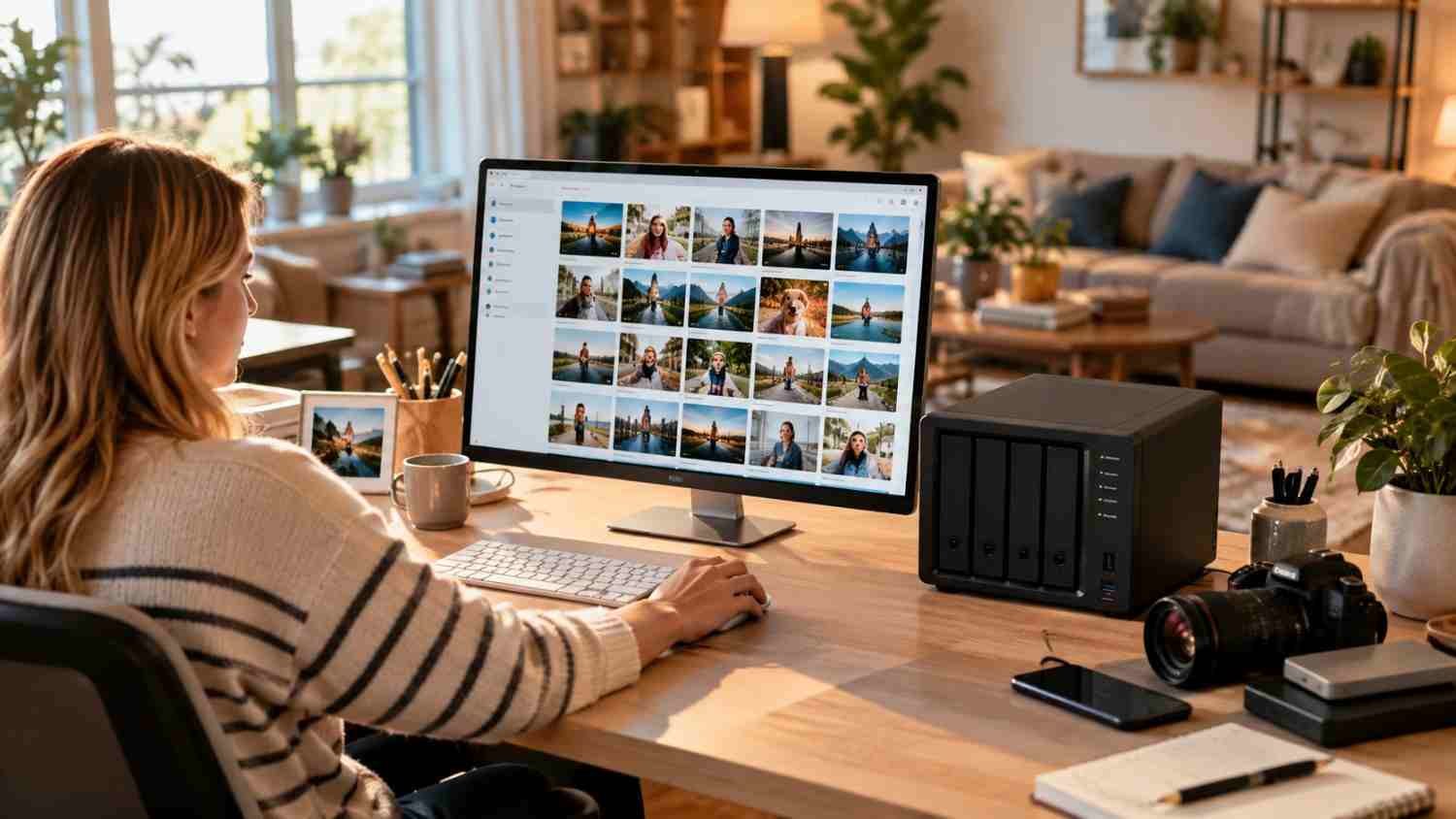
Digital photos often become the first storage problem people notice. Phones make it easy to capture thousands of images, but finding, backing up, and sharing them later can become messy.
Synology Photos provides browsing, albums, search, sharing, and automatic mobile backups. It can organize images by different attributes and lets users maintain personal or shared spaces. Moving that library to a NAS can free device storage while keeping originals accessible.
Large video collections, documents, music libraries, and other files benefit from the same centralized approach. Instead of remembering which drive contains something, users can manage one organized library from connected devices.
Grow With Your Storage Needs
A NAS can make more sense as data requirements grow. Models with multiple drive bays allow capacity and protection options to be planned around a user’s needs. Some support expansion, caching, or faster networking, although features vary.
That flexibility can help households accumulating photos or small teams handling projects. The purchase should be treated as a system rather than simply a box. Drive compatibility, capacity, networking, applications, and future expansion deserve consideration.
When a Synology NAS May Be More Than You Need
Not everyone needs a NAS. Someone with little data, one computer, and straightforward backup needs may find an external drive or cloud service easier. A NAS also involves hardware costs, drive purchases, setup, maintenance, electricity, and security responsibility.
The value becomes clearer when several devices, large libraries, recurring backups, shared files, or long-term data ownership are involved. In those situations, the NAS can replace disconnected storage habits with one manageable system.
FAQs: Why Choose a Synology NAS Device to Manage Your Data?
1. Is a Synology NAS a backup?
It can serve as a backup destination, but it should not be your only backup. Important data should also have additional copies, including an off-site copy.
2. Can I access my Synology NAS remotely?
Yes. Synology provides tools for remote file access, synchronization, and sharing. Proper account security and external-access configuration are essential.
3. Is Synology Photos included with a NAS?
Synology Photos is available as an application on compatible systems and supports photo organization, sharing, and automatic mobile backups.
4. Do I need technical knowledge to use a Synology NAS?
Basic models use DSM’s graphical interface and guided setup. Advanced networking, security, and server functions can require additional technical knowledge.
A NAS is usually most useful when several devices or a growing library make scattered storage difficult to manage. The right model also depends on storage capacity, drive compatibility, and the features you expect to use.
Why Centralized Data Management Can Be Worth It
The strongest reason to choose a Synology NAS is not one application or specification. It is the way everyday storage problems can be brought together. Files, photos, backups, synchronization, permissions, and recovery can operate from one central system, while cloud services can remain part of the setup when useful. That gives users more visibility into where data lives and how it is protected.
Good storage management is rarely about having the most space. It is about knowing where important information is, reaching it reliably, and having a recovery plan when something goes wrong. For households and small teams, a Synology NAS can make that approach practical.